Claude edited my entire Reel. Here's how to set it up for yours.
Every caption, graphic, transition and sound in my Reel came from Claude. Here's the setup, what went wrong in five versions, and a free starter kit to try it on your own video.
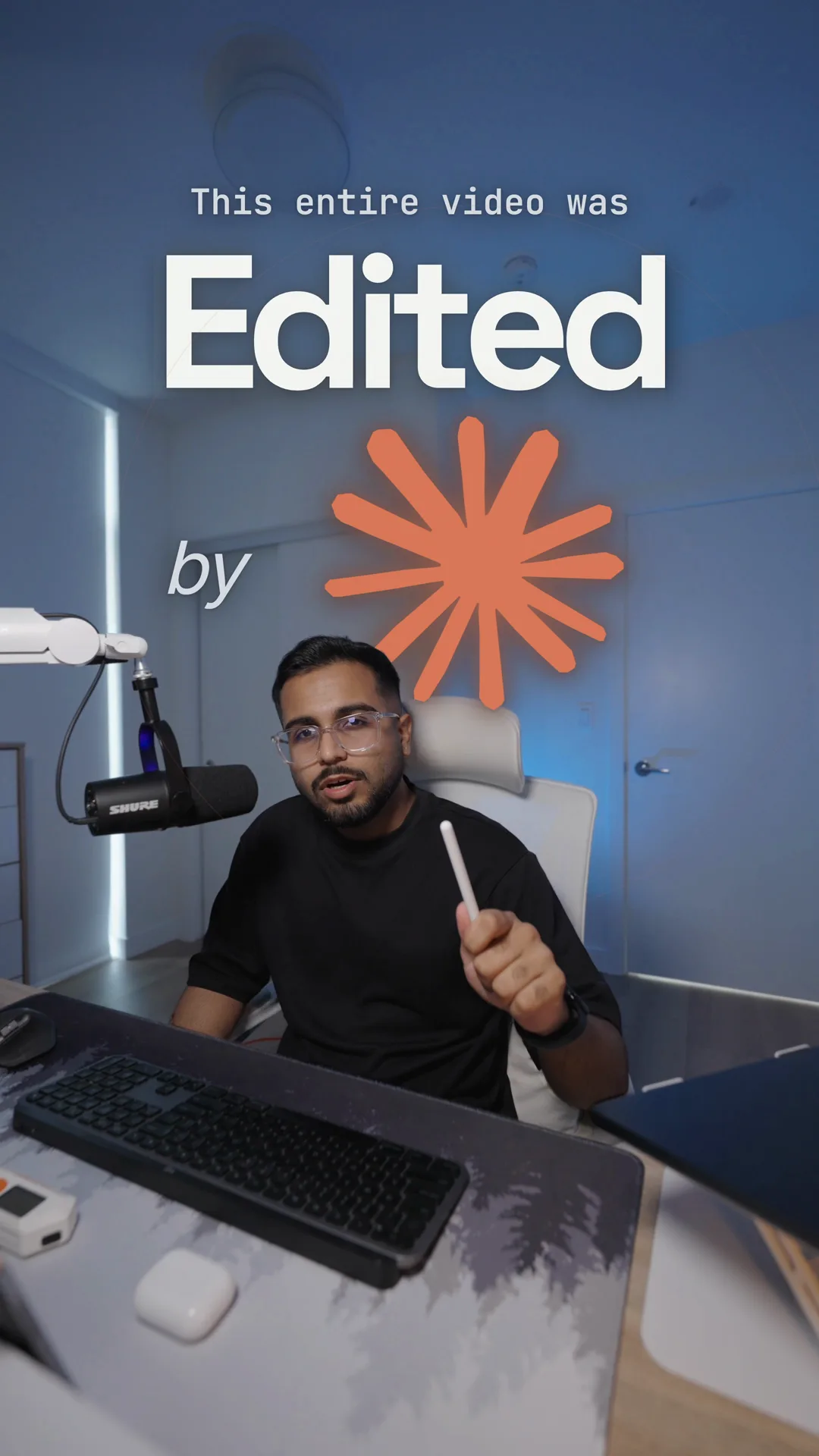
If you commented on my Reel, this is the guide I promised. If you didn't, the Reel is 28 seconds of me talking to the camera, and Claude made everything you see and hear on top of the footage.
It took five versions to get there, and the first one looked like an amateur made it. This post walks through the setup, what went wrong in each version, and what I changed so it stopped happening. At the end there's a free starter kit so you can try it on your own video.
What Claude did, and what I did
I filmed the Reel and cut my takes together in Final Cut Pro, and I added the zooms there too. I only cut it myself because I had several takes of every line, and I knew which ones I wanted to keep. You don't have to do that part. You can point Claude at your raw clips and let it pick the takes and cut them for you, and the kit below can do either.
Everything you see and hear on top of the footage came from Claude:
- The captions, timed to each word as I say it.
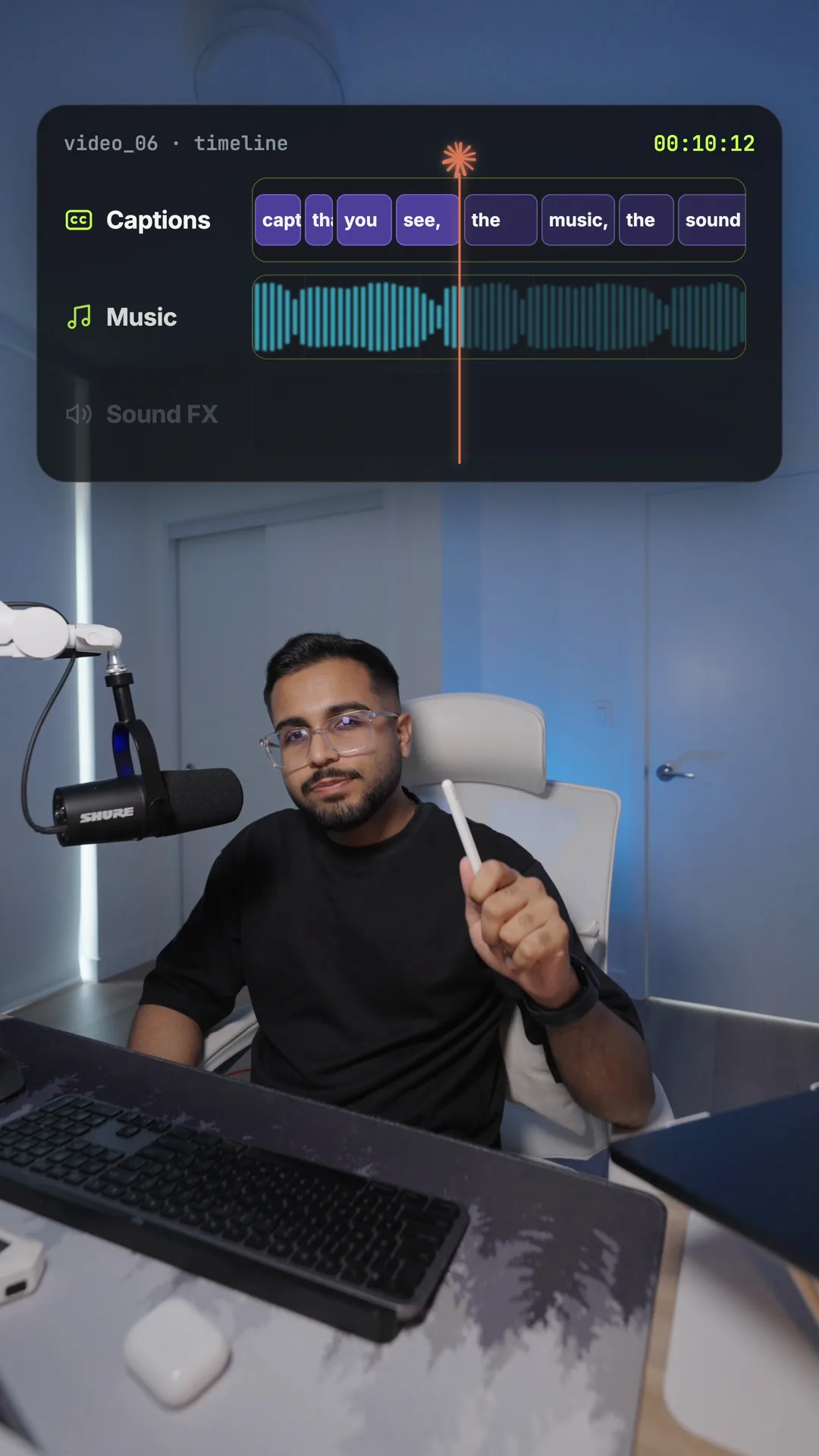
- The motion graphics, like the text behind me in the hook and the timeline that shows this video's own captions, music and sound effects.
- The transitions between takes.
- The sound: the music and 53 sound effects, all picked from my own library, a little EQ on my voice, and the final mix.
- The cover.
How an AI can edit a video at all
Claude can't drag clips around a timeline. What it's very good at is writing code, so the trick is to turn the edit into code.
That's what Remotion does. It's a tool that builds videos out of web code. Every caption, graphic and transition is a few lines that say what appears, where, and at which second. Claude writes those lines, Remotion turns them into frames, and the result is a normal video file.
Three more free tools fill in the gaps:
- Claude Code is Claude working inside a folder on your computer. It can read your files, run commands and write code, and you talk to it in plain English.
- whisper.cpp listens to your video and writes down every word with the exact time you said it. That's what lets captions land on the word instead of roughly near it.
- ffmpeg is the tool that cuts, mixes and converts audio and video behind the scenes.
What you need
- A Mac. The commands below are for macOS. The tools also run on Windows and Linux, but you'll install them differently.
- A paid Claude plan. Claude Code needs a Pro or Max plan. The free plan doesn't include it.
- Your footage. Either the raw clips straight off your phone or camera, or a cut you've already made in your own editor.
- About an hour for the first setup.
Remotion is free for individuals and for companies of up to three people. Bigger companies need a paid licence, and the details are on Remotion's licence page.
Step 1: Install the tools
Open the Terminal app and paste these one at a time. The first installs Claude Code:
curl -fsSL https://claude.ai/install.sh | bash
This one installs ffmpeg and whisper.cpp. It needs Homebrew, which is a free installer for Mac tools:
brew install ffmpeg whisper.cpp
You also need Node.js, which runs Remotion. Download the installer from nodejs.org and click through it.
Step 2: Get the starter kit
The kit is a small project I made from the setup I used. It has captions, headlines, a brand wipe, a flash transition, an end card, and scripts that do the fiddly parts for you.
git clone https://github.com/Ishan-sa/claude-reel-kit.git my-reel
cd my-reel
npm install
npx skills add remotion-dev/skills
The last line adds Remotion's official skills. Those are instructions that teach Claude how Remotion works, so it writes code that renders the first time.
Step 3: Give it your footage
You can do this two ways, and both end with one video file the kit works on.
The easy way is to let Claude cut it. Put your raw clips in a folder and run this, with the path to that folder:
npm run takes -- ~/Movies/my-shoot
It writes down every take in every clip, with the time each line starts and ends. Then ask Claude to pick the best take of each line. It shows you which takes it chose and why, and when two takes are close it asks you. When you're happy with the choices, it runs npm run assemble, which cuts those pieces out and joins them into one video.
Or cut it yourself. If you'd rather choose the takes, cut them in your own editor and export one file in H.264 and Rec. 709, at the frame rate you filmed in. If your phone records HDR, turn that off for the export. Save it in the kit's public folder as footage.mp4.
Either way, the kit never changes how your footage looks. If you film in a flat or log profile, grade it first or give the kit your own LUT, because it won't grade it for you.
Step 4: Transcribe it
npm run transcribe
The first time, this downloads the speech model, which is about 1.5 GB. Then it prints every word you said with the time you said it. Read it once. Every graphic Claude plans comes from these words, so a misheard word here turns into a wrong word on screen.
Next, find your cuts:
npm run cuts
This saves the six frames around every cut into the out/cuts folder. Look at each one for blinks, and I'll explain why in a minute.
Step 5: Write your style file
This is the step that matters most, and the one most people skip.
The kit has a file called SKILL.md in .claude/skills/reel-edit. Claude reads it before every edit. It holds your rules: your colours, where captions sit, which transitions you like, and what you never want to see. Without it, Claude falls back on its own taste, and its own taste is what makes AI edits all look the same.
The file already has the rules that came out of my five versions. Keep the ones you agree with and delete the rest. Here are a few, and the mistake each one came from:
- "Never zoom, crop, regrade or darken my footage." Claude kept adding its own zooms, and I didn't like any of them.
- "On-screen text must match what I say." One graphic said "7 raw takes" while I was saying "one raw take".
- "Captions stay on whenever I'm talking." It hid them under a graphic at the top of the screen while I was still mid-sentence.
- "No warning pills or labels that describe the edit." A red "Verdict: pretty boring" badge looked like a template.
Step 6: Ask for a plan before an edit
Open Claude Code in the kit's folder by typing claude, and start with something like this:
Read CLAUDE.md and the reel-edit skill. Then look at the transcript and the cuts, and propose an edit: which line gets which graphic, where the transitions go, and why. Don't build anything until I say go.
Reading the plan takes two minutes. Fixing a bad idea after it's built takes much longer. When the plan looks right, tell it to go.
To watch the edit while it works, run npm run studio. That opens Remotion's preview in your browser, where you can scrub through the video like a normal editor.
Step 7: Review it like an editor
Claude can't watch your video the way you do. It looks at still frames. So your review is where the quality comes from, and the more exact you are, the faster it gets fixed.
Give a timecode and say what's wrong in plain words: "At 4:28 the transition lands while my eyes are closed, try a flash." That beats "the transitions feel off" every time.
Here's what went wrong in each of my versions, so you know what to look for:
- Version 1 looked like an amateur made it. The text style was weak, a sliced-up transition looked childish, and the faint outline of the hook text sat on screen before it was supposed to appear.
- Version 2 had flickering cutouts. Claude cut me out of the frame to put graphics behind me, and the edges shimmered. The sound effects were also bad, so I pointed it at my own sound library.
- Version 3 had fake camera moves. It zoomed into my t-shirt to get from one shot to the next. I asked for graphic transitions in my brand colours instead, and that became the wipe in the kit. My voice also sounded muffled, so it added a little brightness to it.
- Version 4 was close. But my footage looked a little darker than my own export, one transition landed on a blink, and captions disappeared while I was still talking.
- Version 5 is the one I posted.
Every one of those fixes became a rule in the style file, so the next video starts where this one ended.
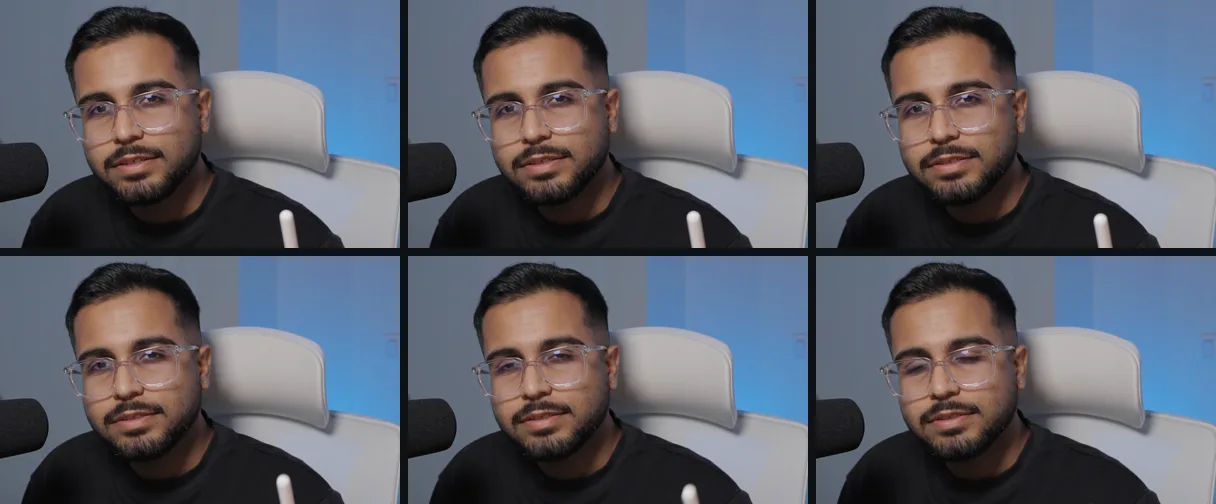
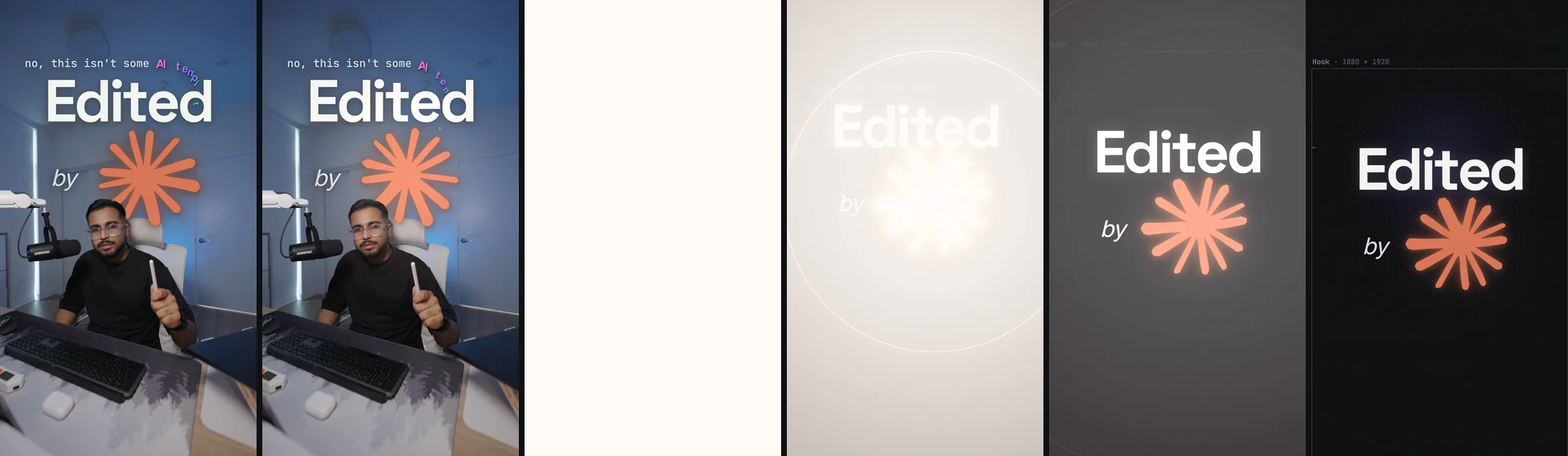
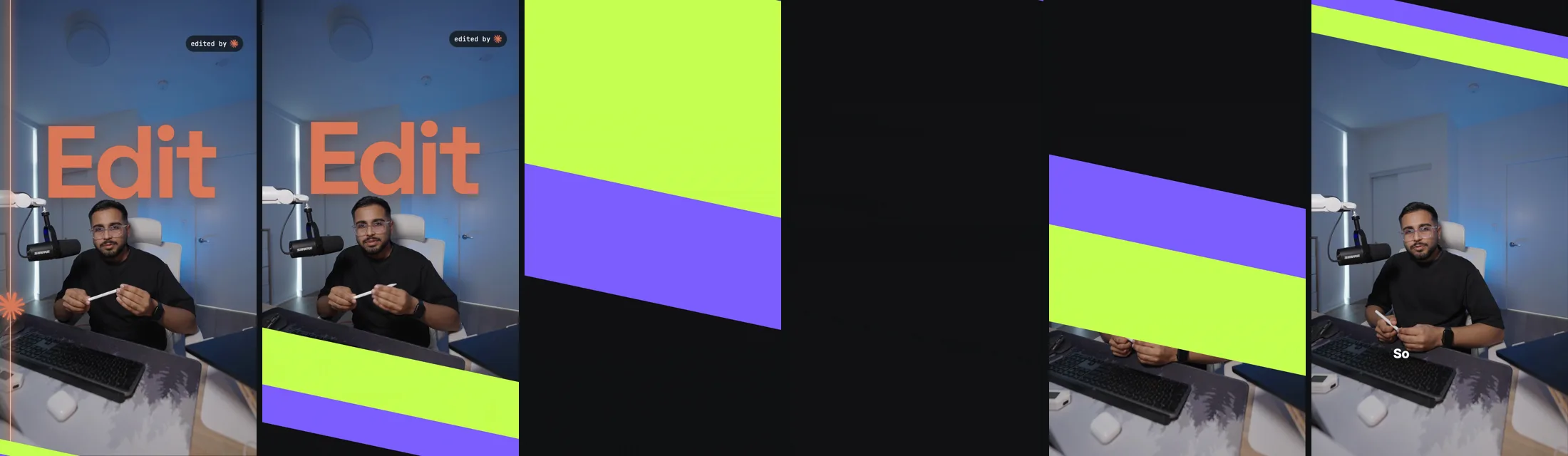
This is why the kit has npm run cuts. A blink right before a cut is easy to miss when you watch at full speed, and it looks awful when a transition holds that frame. In version 5, that cut is covered by a flash instead:
Step 8: Sound
Claude can't hear. It can measure how loud things are, but it can't tell you whether a whoosh sounds cheap. So this part needs your ears more than any other.
What worked for me:
- Use your own sound effects. When Claude picked or generated sounds, they sounded thin. When I pointed it at my own library and named the ones I liked, it got much better.
- Put the hit on the moment. Most sound effect files start with a little silence. In
src/data/sound.jsonyou tell the kit where the hit is inside each file, so the hit lands on the cut and not slightly after it. - Keep the music well under your voice. About 18 to 20 decibels quieter is a good start.
- Don't squash your voice. The kit's mix only turns the volume up to Instagram's loudness and stops the loudest peaks from clipping. It doesn't use a compressor, so your voice keeps its natural rise and fall.
Then run:
npm run mix
Step 9: Export without losing your colour
This one surprised me. In version 4 I told Claude my footage looked darker than my own export. It checked, and I was right.
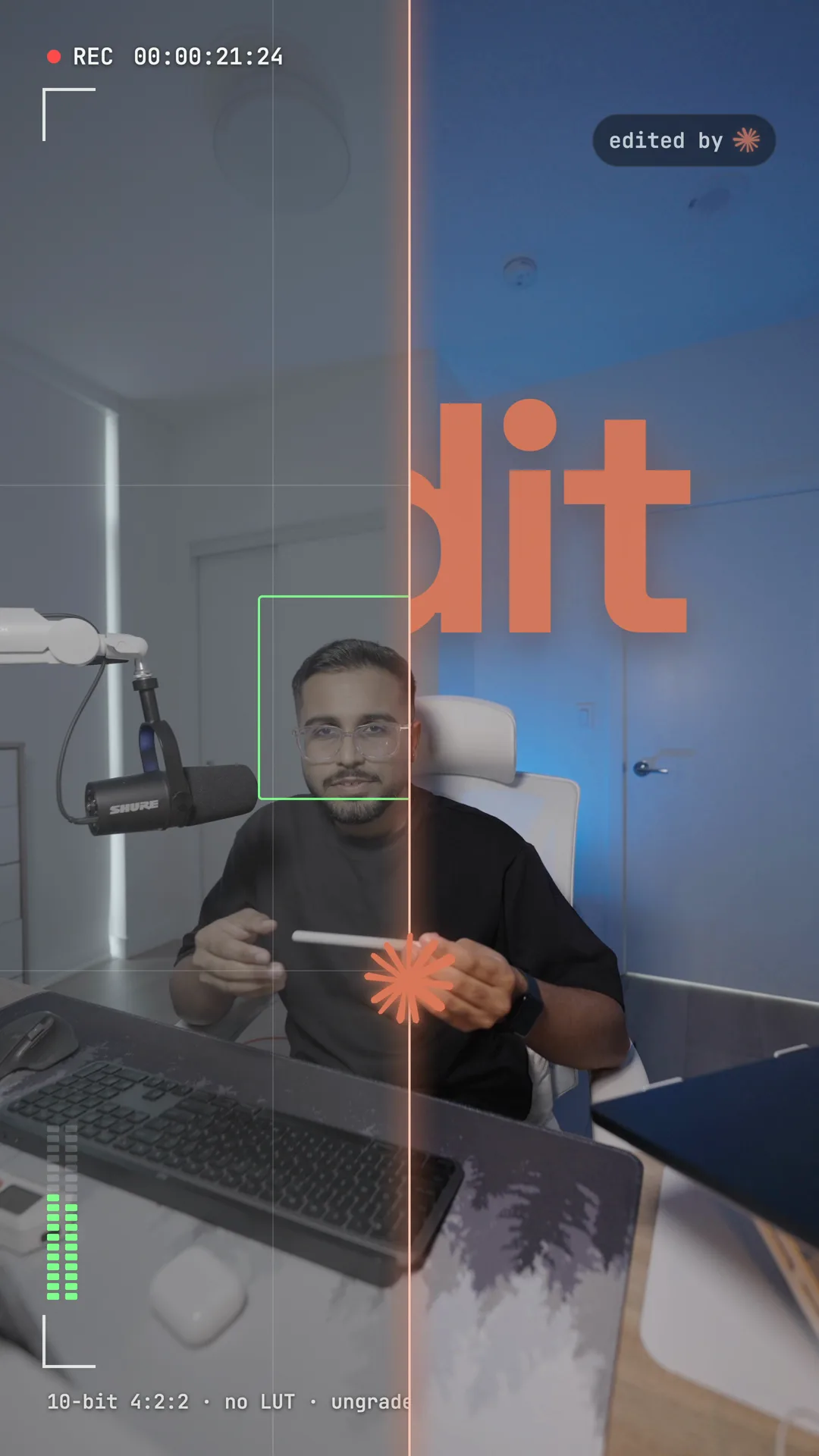
Remotion reads your video through its own pipeline, and on my footage that came out a little under 1 percent darker. It's small, but you notice it when you've spent time grading your footage in your own editor. The file was also saved with the wrong colour settings, which can make some players show it differently again.
The kit's export fixes both. It renders a high-quality master, measures its brightness against your original file, and corrects the final video by exactly the difference. Then it measures again and prints the result, which should read 0 on every frame without graphics.
npm run export
Your finished video is out/final.mp4.
What it still can't do
- It can't hear the mix. Every sound decision needs you to listen.
- It judges motion from still frames. A transition can look fine in stills and feel wrong at full speed, so watch every version properly.
- Its taste is borrowed. It's only as good as your style file and your feedback. The first version of anything will feel generic until you tell it what you like.
- It's not instant. My five versions took from one afternoon to the next morning. The second video is faster, because the rules are already written.
Get the kit
The starter kit is free on GitHub. It has the captions, the wipe, the flash, the end card, the scripts from this post, and the style file with my rules in it. Bring your own footage, music and sound effects.
If you make something with it, send it to me on Instagram. I'd like to see what your style file turns into.
I build AI systems and automations for small businesses, and I show every build on Instagram.